
Teammeter’s marketplace lets you see internal openings inside your organization (projects, internal moves, smaller tasks) and apply directly. This article covers the employee side: how to find Opportunities that fit, what you can see on each listing, and what happens when you apply.
For an overview of the whole feature, see What is Opportunity Management?.
Two ways to find Opportunities
The Opportunity board is the central view of all currently open internal Opportunities in your organization. It shows every Opportunity in the Open status and lets you filter and search by criteria such as skills, location, or Opportunity type.
Each row on the board shows a summary (title, team, required skills, duration) plus your personal match score, so you can quickly assess whether it is relevant before opening it.
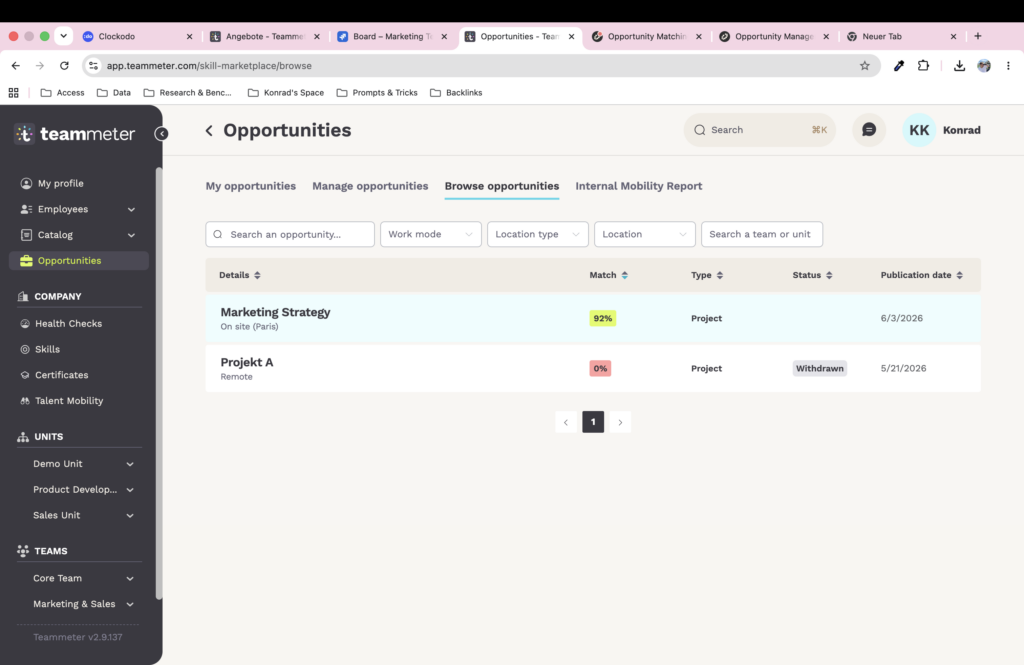
Personalized recommendations also appear on your dashboard based on your skill profile. Opportunities where your match score is strong are highlighted.
This means you do not always have to scan the full board manually. The system shows you the ones where you are likely to be a fit.
What you can see on an Opportunity
For Opportunities in the Open status, you can read the full details: description, required skills, certificates, role, location, time effort, start and end dates.
The Opportunity Owners are hidden from your view. You see the team or unit hosting the Opportunity, but not the names of the individuals reviewing applications.
For Opportunities in the Filled or Closed status, the listing appears in the overview but the details are not accessible. Opportunities in Draft are not visible to employees at all.
Applying
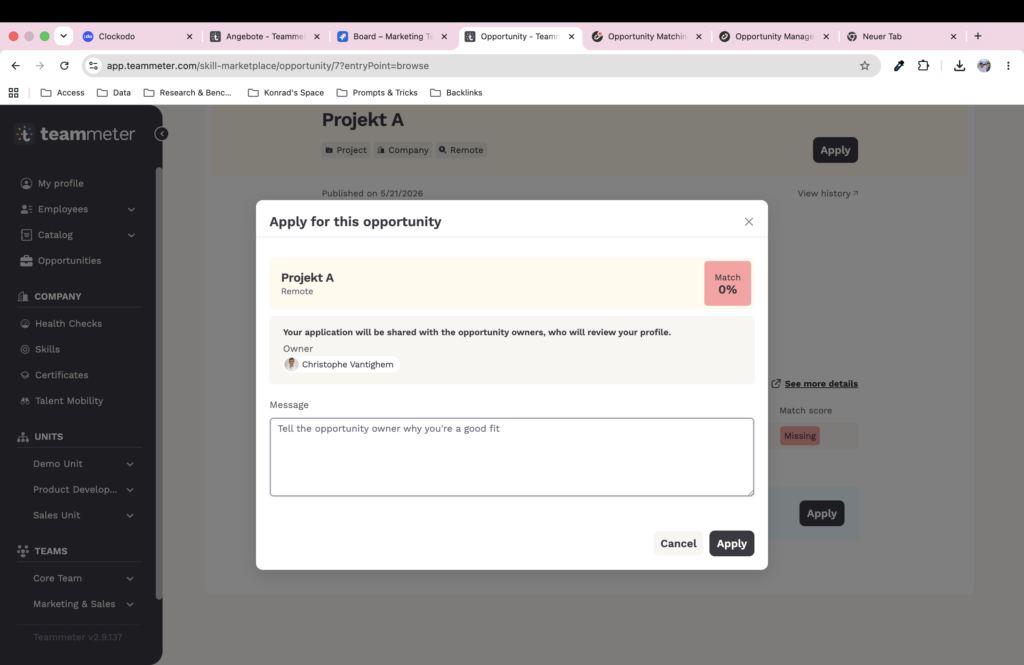
When you find an Opportunity that fits, submit your application from the detail page. Your skill profile and public information are what the Owner will see.
You can also add a short personal message to your application. The message is optional and only visible to the Opportunity Owners. Even if your direct skill match is low or zero, you can still apply with a justification, the system does not block you.
Right after submitting, you receive a confirmation email:
Hello [Your name],
Thank you for your application.
We’ve received your application for the opportunity [Opportunity name].
The opportunity owners will review your profile and get back to you if there’s a match.
If you have any questions, feel free to contact the opportunity owners.
[Button: View opportunity]
If you added a message during application, it is included in the confirmation under Your message.
After you apply
The Opportunity Owners are notified that a new application came in. They can open your public profile and review your application alongside any others.
You do not have to do anything between submitting and hearing back. The Owners review applications and update the status (in the shortlist, selected, not selected) as they go. If they choose to notify you, you receive an email when your application status changes.
Withdrawing an application
If you change your mind, you can withdraw your application from the same Opportunity page. The Owner sees the application status change to Withdrawn.
Re-applying
If your application was rejected or withdrawn, you can apply again to the same Opportunity later.
This is useful when, for example, your skill profile has changed (a certificate was renewed, a skill was added or assessed at a higher level) and the new score now fits the role.
Where to go next
- How opportunity matching works to understand how your match score is calculated and what you can do to improve it.
- What is Opportunity Management? for the bigger picture across all roles.