How to use the Skills Matrix
The Skills Matrix is an essential tool to ensure your team has the required skills. You find it in the left sidebar: select your team under „TEAMS“ and open Kompetenz-Matrix (Skills Matrix). The page is titled „Team-Kompetenzen“.
Export: The Skills Matrix cannot currently be exported to Excel.
Filter and adjust the matrix (Settings menu)
The icon to the left of the search bar opens the Settings menu, where you tailor what the matrix shows. From here you can apply Filters (for example by members, roles or skill sets), switch the View (Development, Certificates or Evolution), choose which Columns appear, and set Priority, Sorting and Zoom. If something you expect is not visible in the matrix, open this menu to filter for it or switch to the matching view.
1. Add skills to the Matrix
Start by adding relevant skills from the shared skill catalog used by all teams within your company.
2. Identify with the heat map the required qualifications and plan a training.
Directly update the current and target skill levels in the matrix using your custom scale. Add a training to the development plan of the employee or add custom actions like knowledge transfer sessions.
3. Check the certification view
View employees’ validated training certificates and keep track of those that are nearing expiration.
4. Attach certificates
Once a training is complete, upload the relevant certificate to document the employee’s achievement.
5. Define skill requirements
Set the required number of employees for each skill level and identify any skill gaps that need to be addressed.
6. Use the role filter
To focus on the specific skills needed for a particular role, apply the filter function at the top of the matrix.
7. Track Employee Progress
Track the progress of each employee by selecting the “Evolution” view to see changes since last year.
8. Visualize the skill Radar in the dashboard
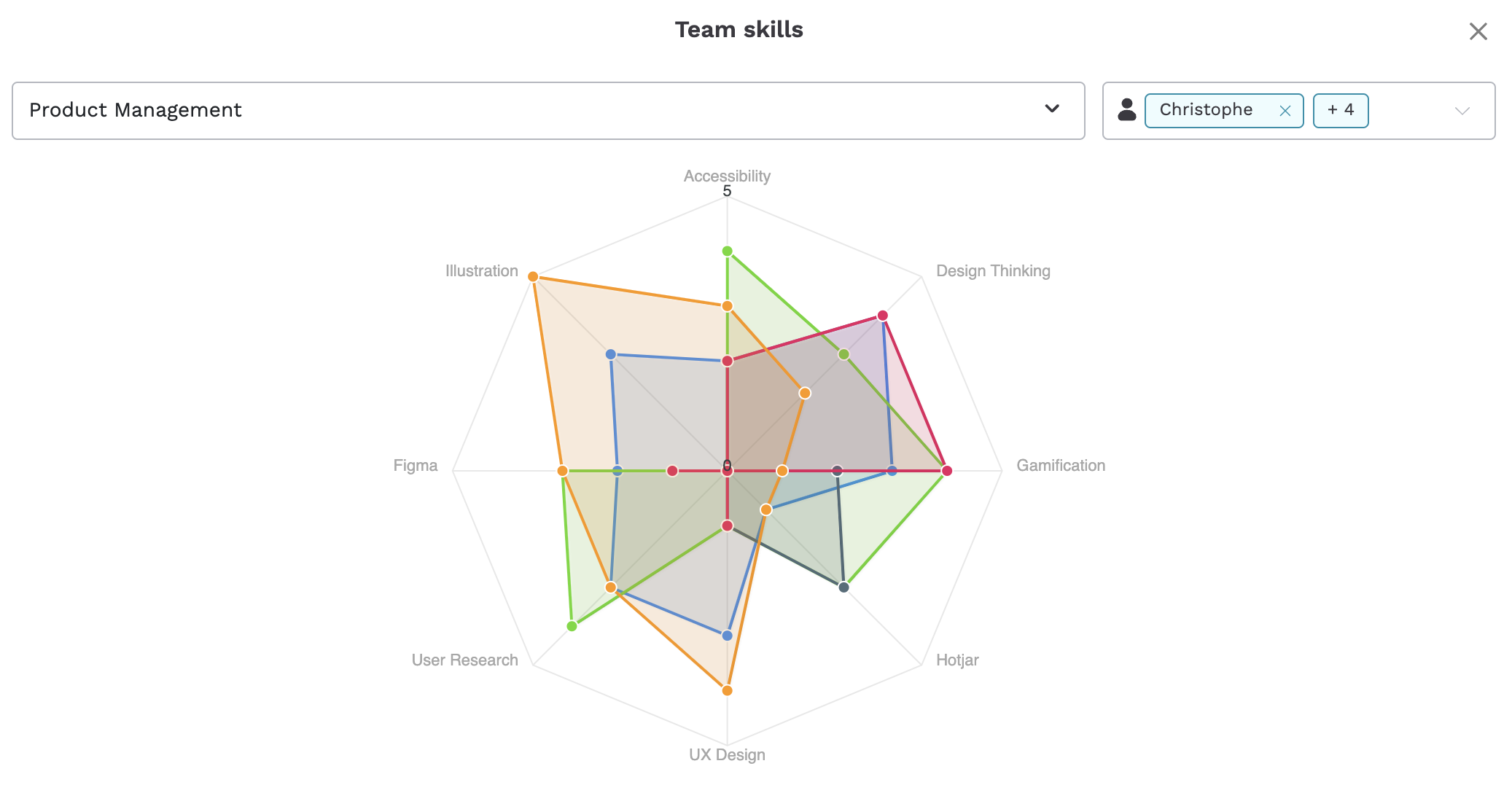
Finally, visualize the Skill Radar of your team members in the dashboard, highlighting the top skills to be developed.
9. Hide members or coaches
To hide individual people or coaches from the matrix, open the filter (the filter icon to the left of the search bar, „Filter“) and select „Mitglieder“ (Members). Switch off the toggle next to anyone you want to hide, for example „Coaches“ or a single person, and they no longer appear as columns in the matrix. Use „Filter löschen“ to reset. The same filter also offers „Rollen“ (roles), „Skill Sets“ and „Kompetenzstufen“ (skill levels).
Looking beyond this team: the skill matrix only covers the members of one team. To find out who anywhere in the company has a skill, use the search. See Searching in Teammeter: people, skills and certificates.
Set Requirements
The “Requirements” column („Anforderungen“) in the Skills Matrix lets you define how many people you need at each skill level for specific roles.
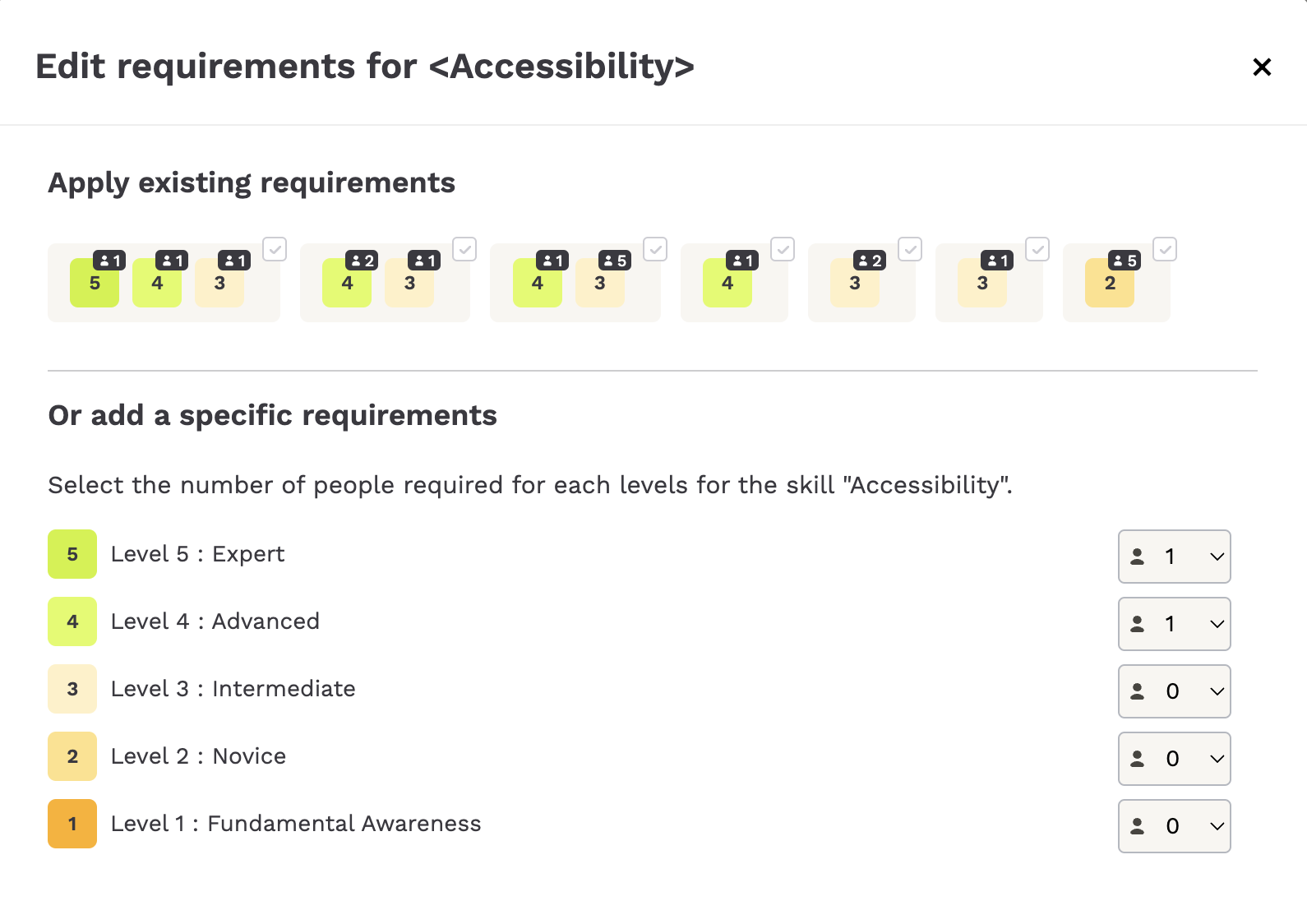
For example, if you need one person at level 5 (expert) and another at level 4 for the skill “Accessibility,” you can easily set those requirements with a simple click. They’re instantly added to the matrix, allowing you to track progress toward meeting them.
If you haven’t reached 100% for a specific skill level yet, don’t worry—Teammeter will help you stay on top of it!
Take a look to the Dev Plan Action
To close the gap and hit 100%, you need a plan. That’s where the Development Plan comes in. Here’s how I use it to take action.
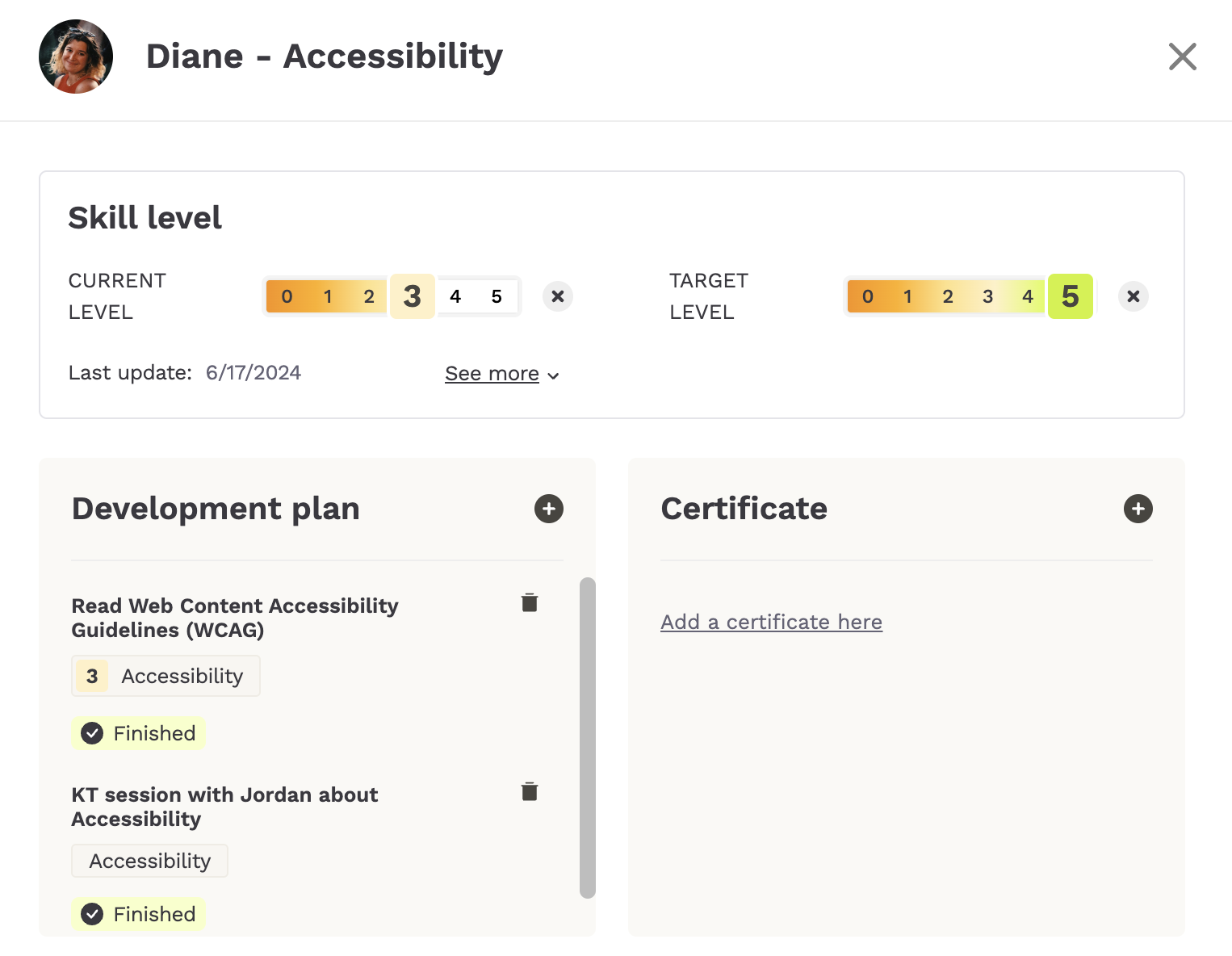
My current skill level for “Accessibility” is 4, and my target is level 5. By adding relevant training—like this one I found—I can work toward that goal.
Once I schedule the training, I have a clear timeline to complete it before the deadline.
After finishing, I can easily upload my certificate of completion to show my progress. It’s a straightforward way to manage skill development and track progress directly in the Skills Matrix.
Check the Skill Radar
One of the most valuable features is the Skill Radar („Kompetenz-Radar“, button at the top right of the matrix). With a single click, it provides a comprehensive visual snapshot of your team’s skills. This chart offers an immediate overview of individual strengths, skill gaps, and areas requiring the most attention. It’s an ideal tool for gaining a high-level perspective on your team’s capabilities and areas for development.