
This article covers the search in Teammeter. You use it to find a person and open their profile, and to search for skills and certificates to see who holds them.
It is worth reading if you need to cover an absence, see who could work on something, plan a succession, or show a customer that the qualification exists in your team.
On this page
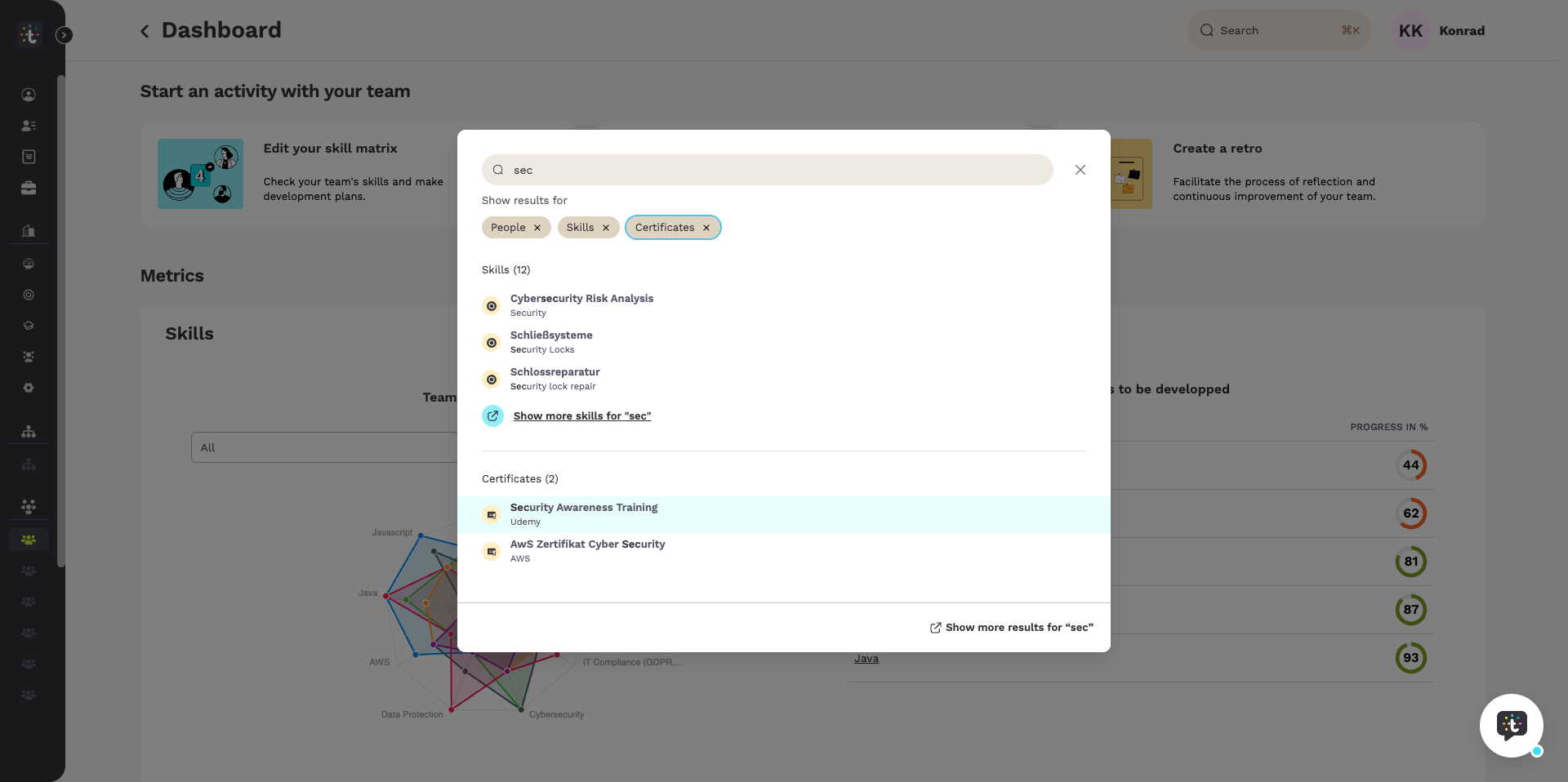
🔍 What the search box finds
The search looks at three things at once: people, skills and certificates. Knowing which of the three you are searching saves most of the confusion.
Two ways into the same search
There are two places to search. They are the same search with the same data behind them. Only the amount of room differs.
| Where | How you open it | When to use it |
|---|---|---|
| The search window | In the top bar of every page. Click the search box or press the keyboard shortcut. | You are in the middle of something and want a quick answer. |
| The full page | From the window, through the link at the bottom of the result list. | One answer is not enough and you want to work through a list. |
The labels on those two are:
- “Search”
- ⌘K
- Ctrl K
- “Search for a skill or a person…”
- “Show more results for”
- “Search Results”
The shortcut depends on your computer. Teammeter shows the first one on a Mac and the second one on Windows and Linux.
Can I limit the search to one type?
Yes. Both places offer the same three types, and all three are searched at once. The row above the results is headed:
“Show results for”
Each type carries a small x. Click the x to take that type out of the search.
| Type | What it searches | Typical reason to use it |
|---|---|---|
| “People” | names of people in your company | You know who you mean and want to open their profile. |
| “Skills” | skill names and their alternative names | You want to know who can do something. |
| “Certificates” | certificate names | You need proof that a qualification exists. |
ℹ️ Note: taking a type out changes what is searched, not just what is shown. The people type matches names of people and nothing else. Searching for the name of a skill under that type returns nobody, even when several colleagues have that skill. A name search will therefore never tell you who has a skill.
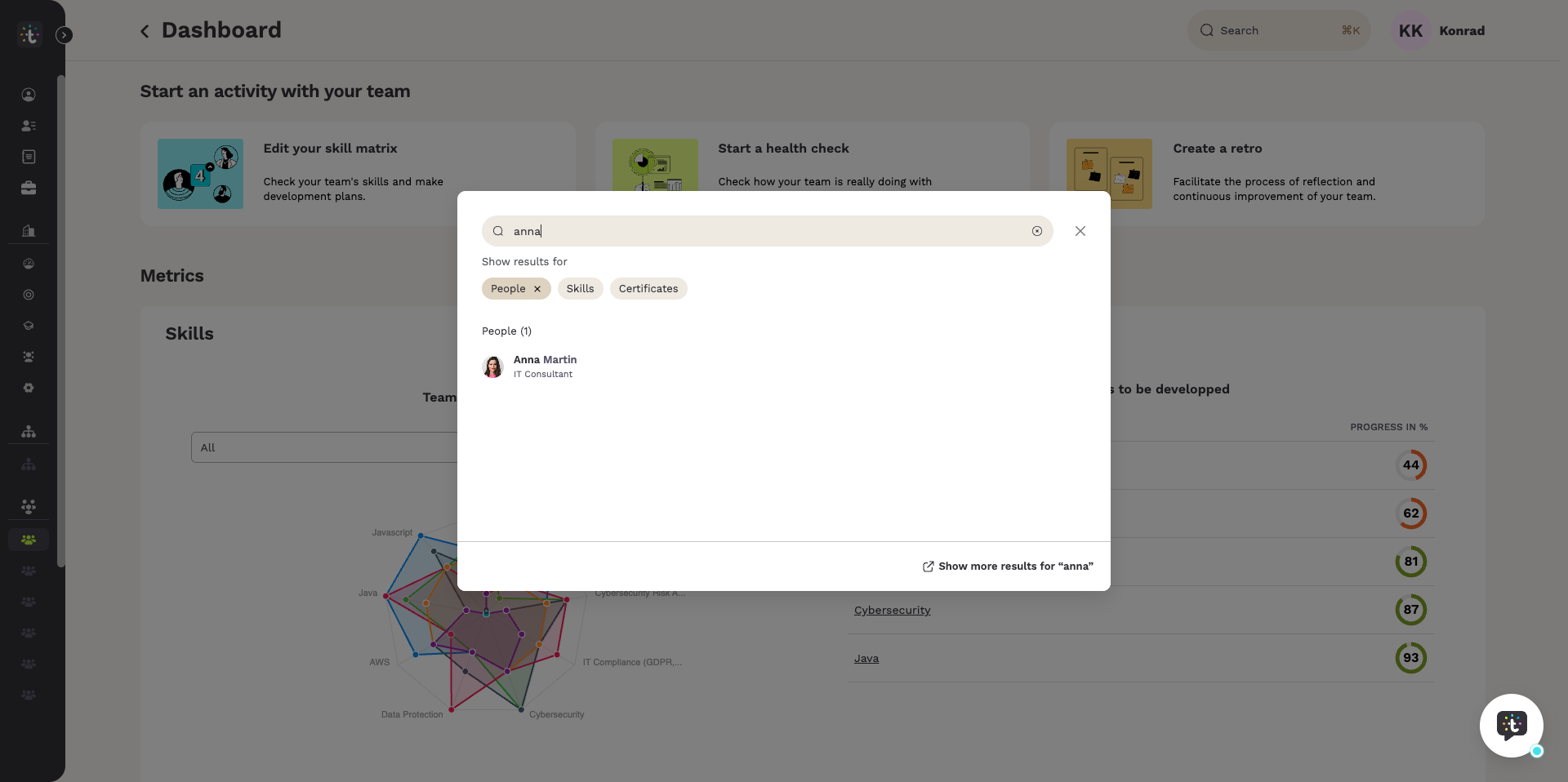
How the results are grouped
Results come back grouped by type, with a count per group. Each group has its own link to the rest of that group, and there is one link at the bottom for all results together.
When a search finds nothing, the window says:
“Sorry, no results found. Try a different search.”
👤 How do I find everyone with a certain skill?
You start from the skill, not from the person. Search for the skill, then ask for the people who have it. That works from either of the two places, and it also works from the skill page itself. Certificates are different and are covered at the end of this chapter.
From a list of search results
- Type the skill into the search field.
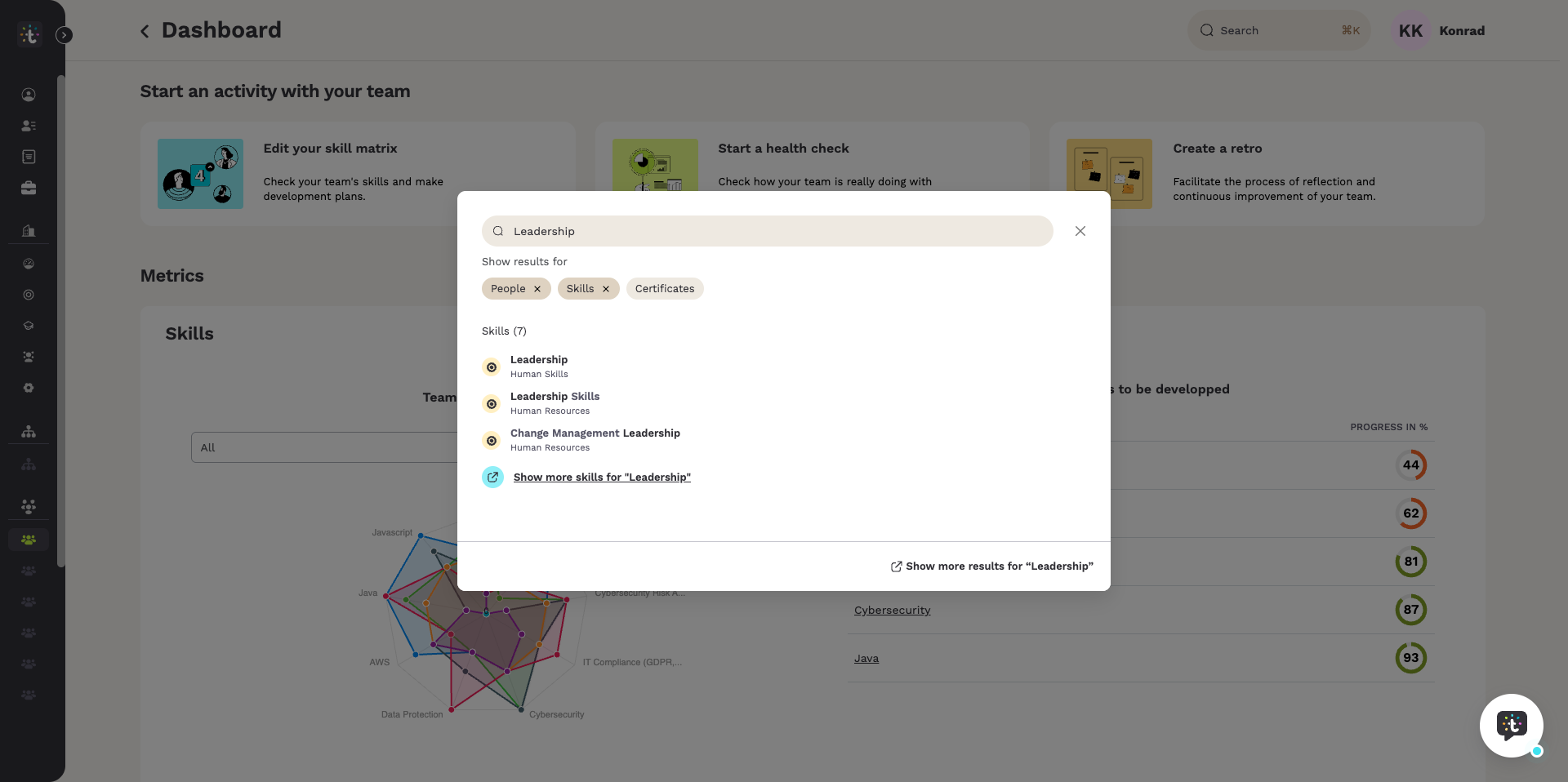
- Move the mouse over the skill in the result list. Icon buttons appear at the right of that row.
- Click the one with the people icon.
- The result page opens with the people who have that skill.
The same action carries two different labels. Which one you see depends on where you are, so read the tooltip together with the place it appears in.
In the search window, a skill row shows two icon buttons, and the tooltip on the people icon reads “View people with this skill”.
On the full page, a skill row shows three icon buttons, and the tooltip on the people icon reads “View people”.
Both open the same result page.
From the skill page
- Open the skill itself. Skills live in the catalog and the search finds them.
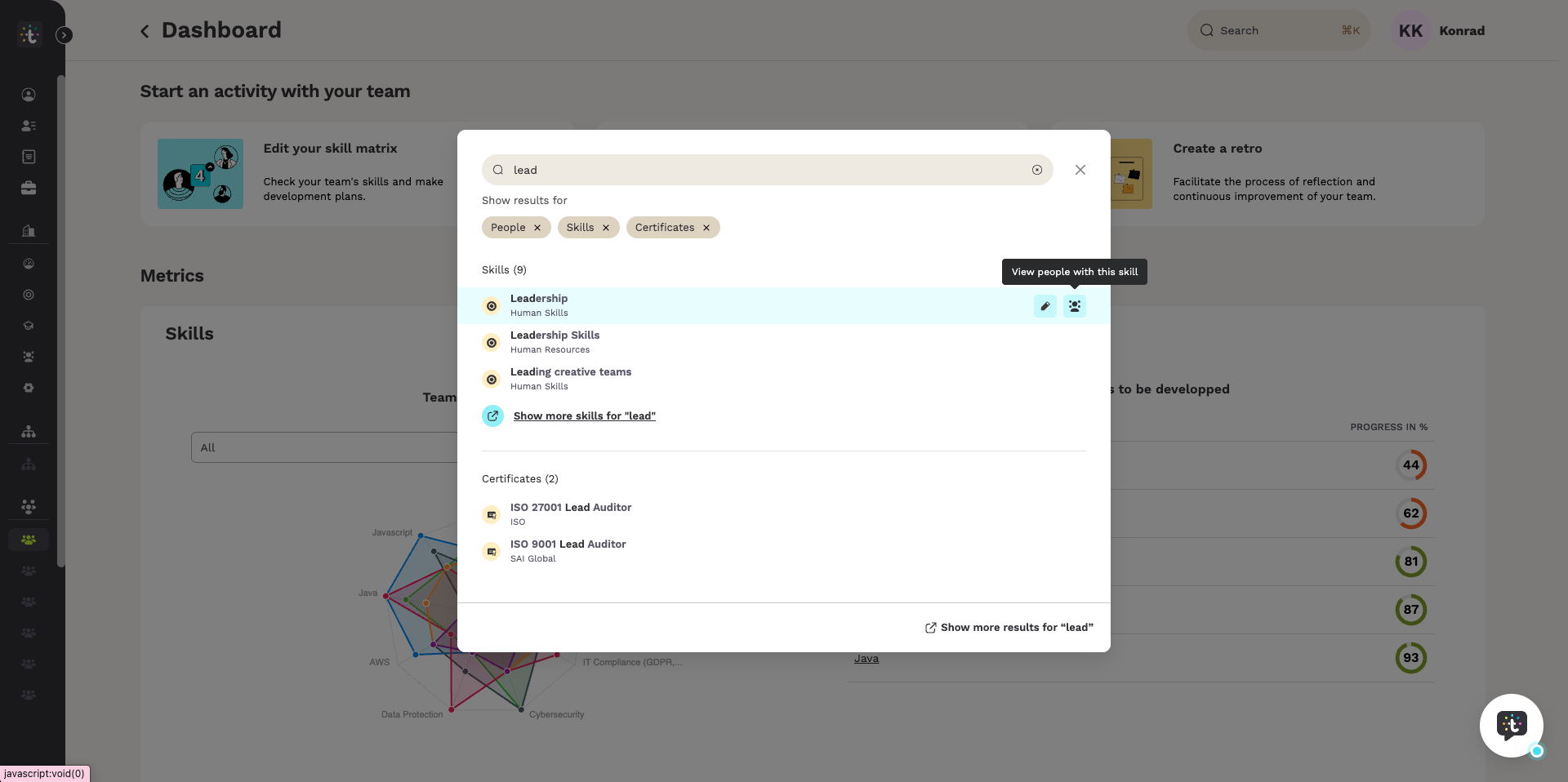
- The page shows the catalog path at the top and the skill name. When they are set, it also shows a description and the related skills.
- Click the button under them.
- The button is labelled “View people with this skill”.
Use this way when you first want to check what the skill actually covers. Further down, the page also spells out what each level means in your company, which is what you compare against when you read the results.
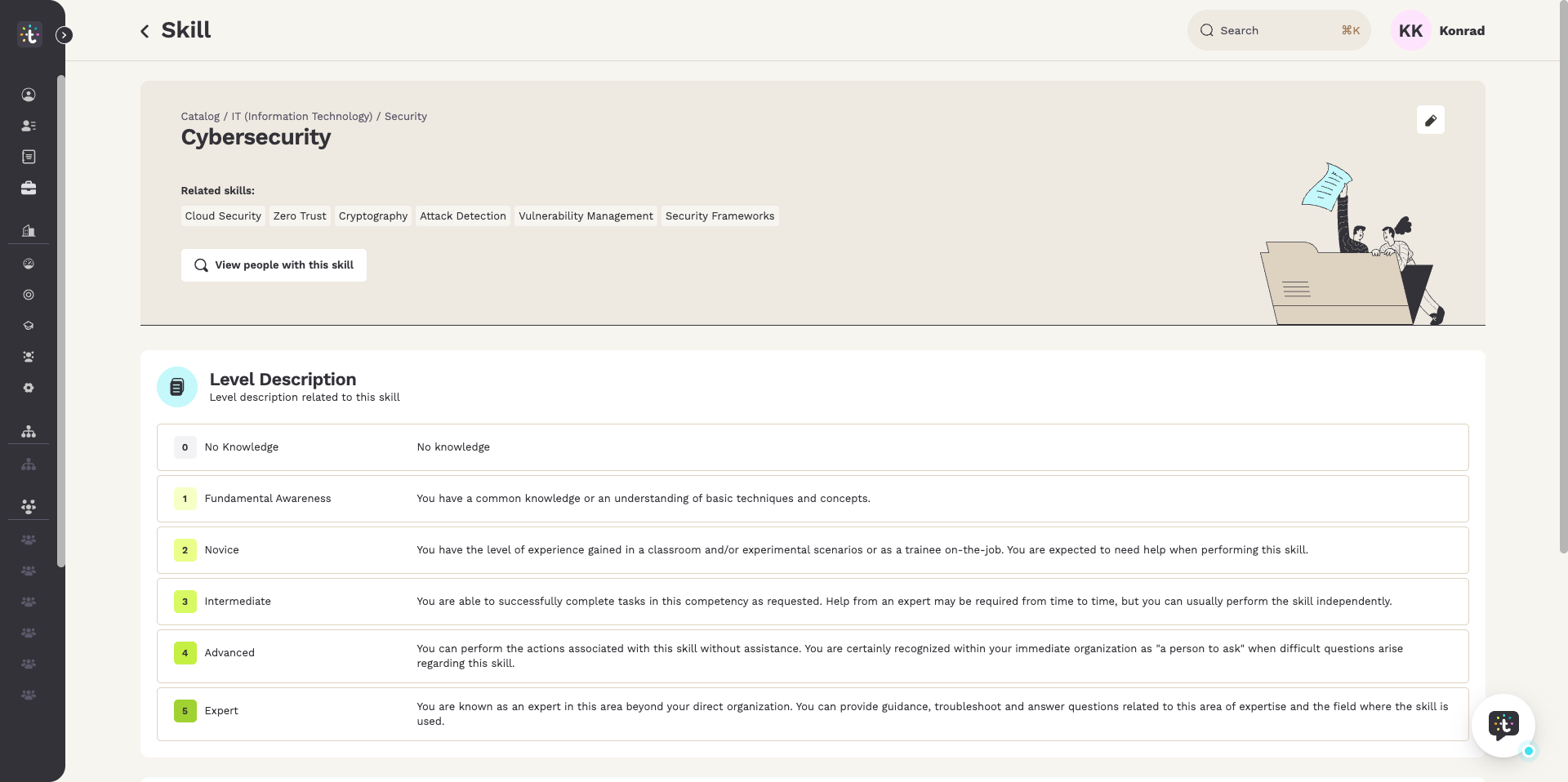
⚠️ Caution: the names and the descriptions of the levels belong to your company, not to Teammeter. An administrator sets them in the skill catalog, and can word them differently for each type of skill and for each language. The wording in your Teammeter may therefore differ from the screenshots in this article. Always read the levels on your own skill page before you decide whether a level is high enough.
How do I find out who holds a certificate?
A certificate works differently from a skill. There is no button to take you to the people, because the list of people sits on the certificate page itself. You have to open the certificate first. The result list only shows certificates, never the people who hold them.
- Type the name of the certificate into the search field.
- Click the certificate in the result list. This opens the certificate page.
- The page shows the issuer, the certificate name, how long the certificate stays valid, and the skills it validates.
- Scroll down on that page to reach the list of people.
The block with the people is headed:
“Certified People”
It gives you a count of the valid ones, a search field for name or role, and a table.
| Column | What it tells you |
|---|---|
| “Employee” | who holds the certificate |
| “Role” | what they do |
| “Valid until” | the date to check before you promise a qualification to a customer |
Do I have to type the exact name of the skill?
No. A skill can carry several names in each language: one main name and any number of alternative names. The search matches all of them, and it matches across languages.
In the result list the line under a skill shows either the category it belongs to, or the alternative name that matched, with the part you typed highlighted. That is how an English word finds a skill whose main name is German.
💡 Tip: search before you conclude that a skill is missing from the catalog. It may already exist under a name you did not think of. The search box compares your word with the names a skill carries, and with nothing else. It does not follow the links between skills. A skill that carries a name in one language only is therefore not found by a word from the other language, even when it is linked to skills that do carry that name. Keeping the alternative names complete is catalog work, and it pays off on every search.
📊 Reading and narrowing the results
Every route ends on the same full page. It answers two things: who matches, and how closely.
What the full page shows
A line at the top tells you what is currently being shown. It names either all three types or the one you picked.
Results sit in collapsible sections, each with a count. A section with no hits still appears, collapsed and showing zero, so you can see that it was searched. Without a search term the page simply lists everyone as cards with name and role, and a button at the bottom loads the next ones. That makes the page usable for browsing, not only for searching.
Exact matches and close matches
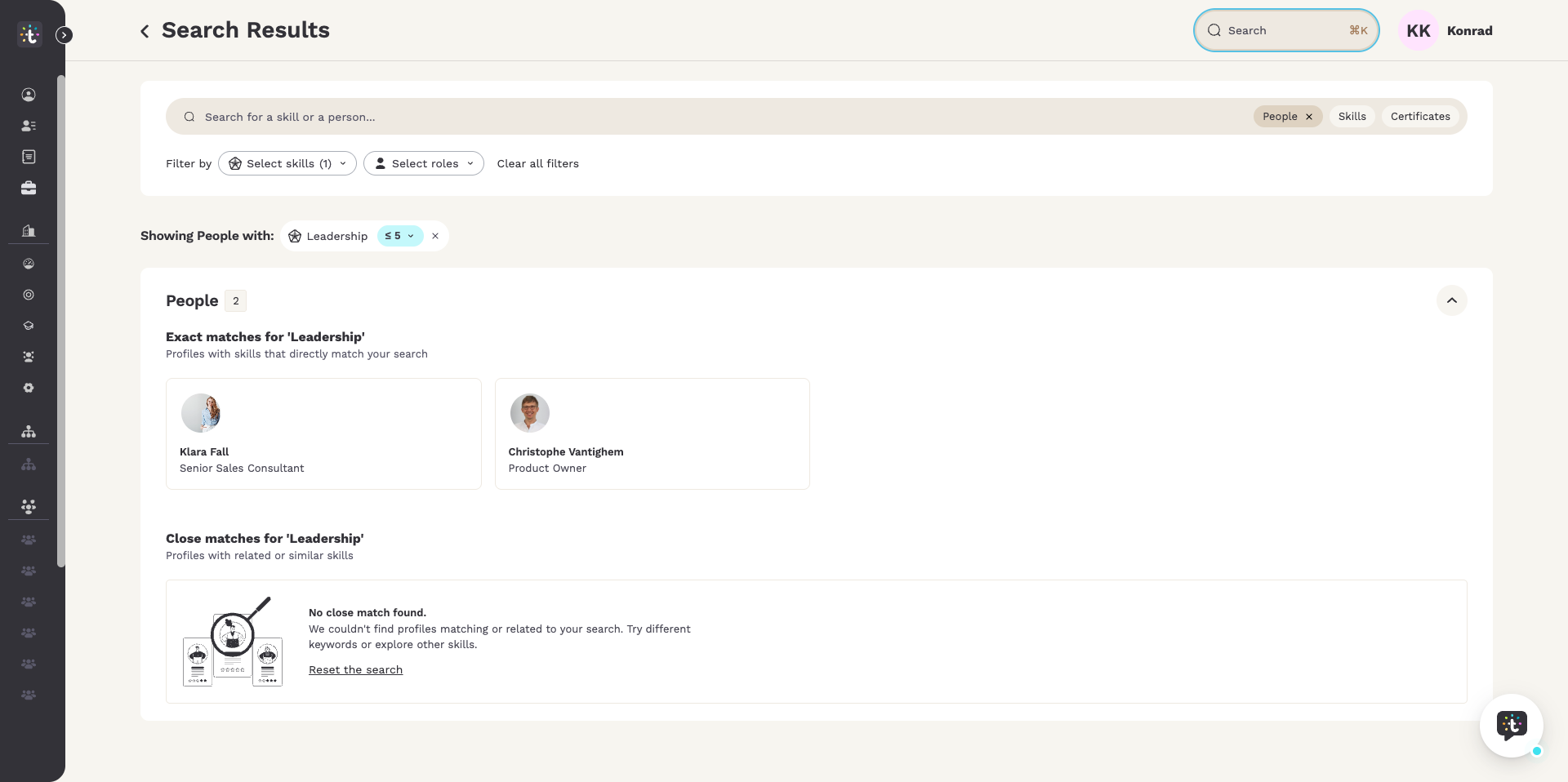
When you asked for the people with a skill, the results come back in two blocks. The second one is the reason to search this way at all.
| Block | What the page says about it | What that means |
|---|---|---|
| “Exact matches” | “Profiles with skills that directly match your search” | These people carry the skill itself, at the level you asked for. |
| “Close matches” | “Profiles with related or similar skills” | Two kinds of people land here, each with a match in percent. People who carry the skill you asked for, but below the level you set. And people who carry a skill that is linked to it, without having that skill themselves. |
Those links between skills are kept in the skill catalog, and they are the same ones a skill page lists as its related skills. An administrator maintains them, and Teammeter can also generate them, which is a setting in the catalog.
Each result shows the photo, the name and the role, so you can tell two people apart before you open a profile. Opening one takes you to that person’s skill profile.
Narrowing the list with filters
A filter row sits above the results. It offers three things.
| Filter | What it does |
|---|---|
| “Select skills” | adds more skills to the search. The number in brackets tells you how many are active. |
| “Select roles” | keeps only the people who hold a given role. |
| “Clear all filters” | puts everything back. |
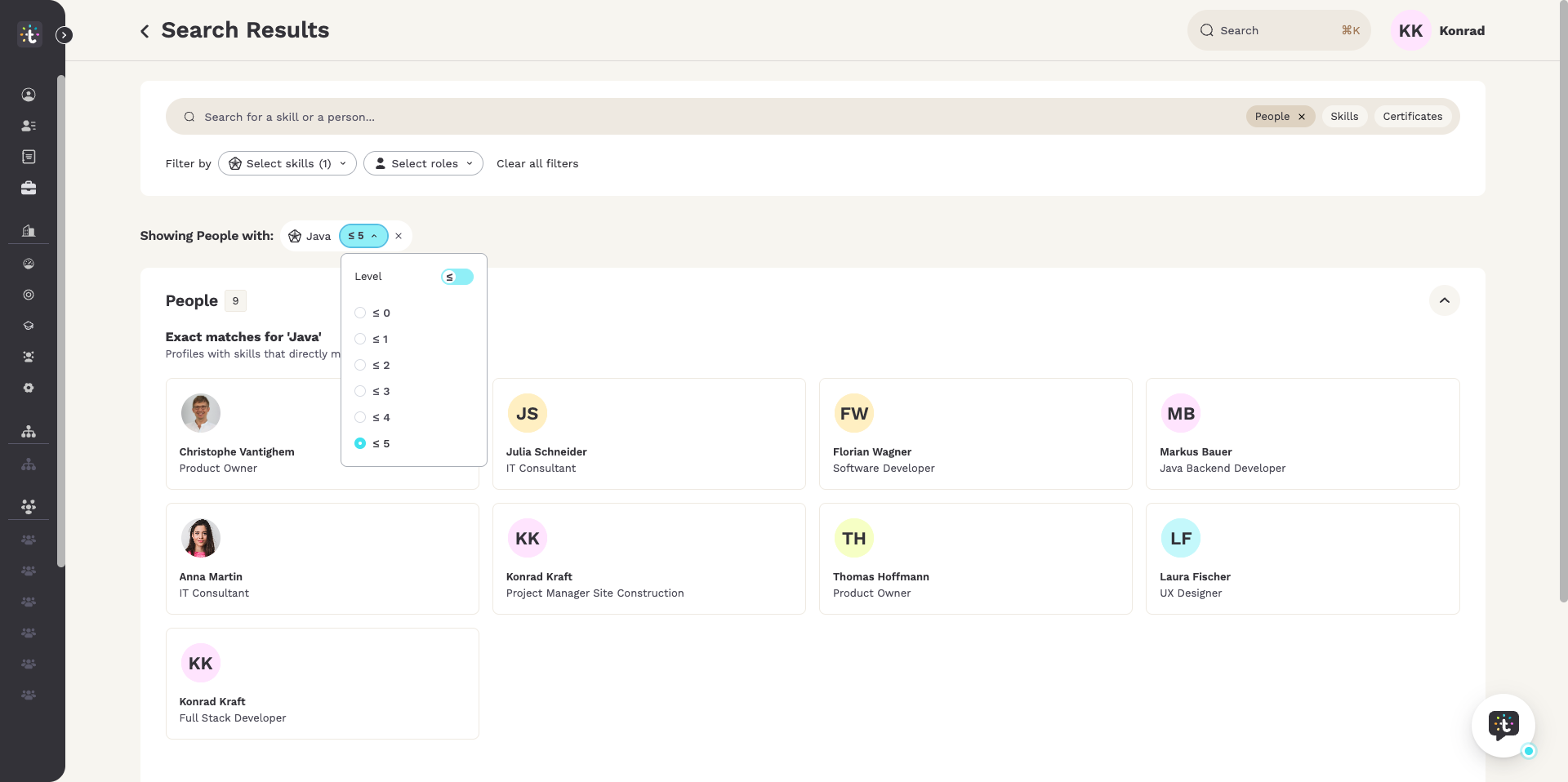
Next to the skill sits a button for the level. It opens a small panel with a switch for the operator and one option for every level of your own scale. The panel starts at the top of the scale, which covers everything and therefore filters nothing. Flip the switch the other way and pick a level to see only the people who reach at least that level. Everyone below it moves to the close matches block instead of disappearing.
ℹ️ Note: if a block stays empty, the page says so and offers a link to reset the search. Clear the filters and try the skill under a different name.
Why does a person not show up?
Matches are worked out from the skills on a person’s skill profile. A linked skill on that profile is enough to appear under close matches. But someone who carries neither the skill nor a linked one does not appear at all, even when everyone in the team knows they can do it.
See Manage your skill profile for how a profile is filled in.
🧭 When to use something else
This search answers one question: who has this skill. Two neighbouring questions look similar and are handled elsewhere.
You are looking inside one team. Use that team’s skill matrix instead. It shows every member and every skill in one grid, with the levels.
See Use the skill matrix.
You want to fill an open project, task or role. Teammeter groups those three under opportunities: a project with a fixed timeframe, an internal mobility as a permanent change, and a smaller, clearly defined task. You publish an opportunity and describe what it needs. Teammeter then works out how well people fit and shows you a ranked list of suggestions, preset to those who reach at least a 70 percent match, and you can invite them. People can also apply themselves.
See What is Opportunity Management?
Related articles
- Manage the skill catalog
- Manage your skill profile
- Use the skill matrix
- What is Opportunity Management?
Getting help
If the search does not behave as described here, write to support@teammeter.com.