
Team Coaches, Unit Coaches, and HR Managers can create opportunities. This article shows how to set one up and publish it so that employees can find it.
On this page
🔍 Where to start
In the sidebar, open “Opportunities” and go to the “My opportunities” tab. It lists every opportunity you are the owner of. The “Add opportunity” button at the top right starts a new one.
ℹ️ Note: A new opportunity starts as a draft. As long as its status is “Draft”, nobody else can see it.
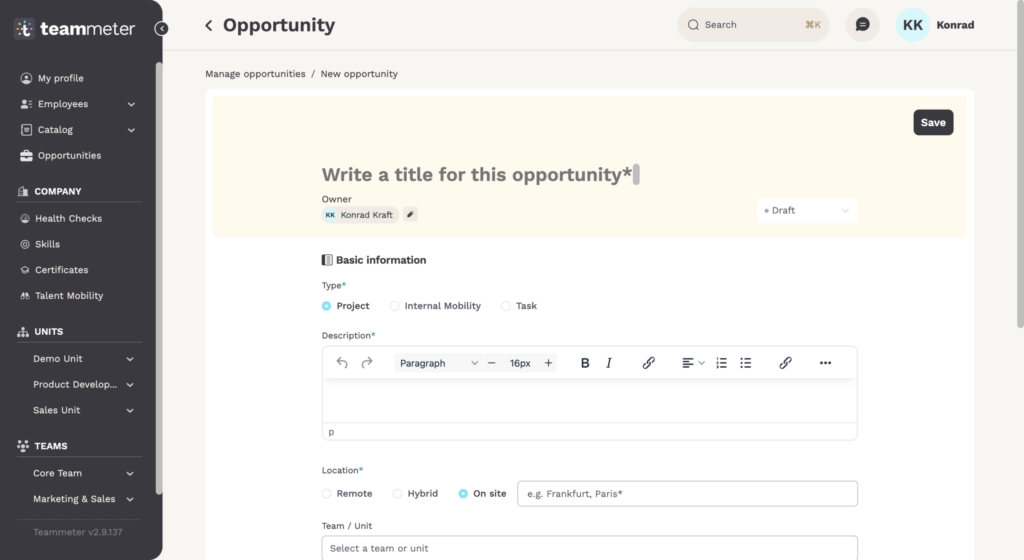
📝 What you fill in
Under “Basic information” you enter a title, the type (project, internal mobility, or task), a short description, the location (remote, hybrid, or on site), and the team or organisation behind it. At the top you also see the owner, the person who looks after the opportunity and receives the applications.
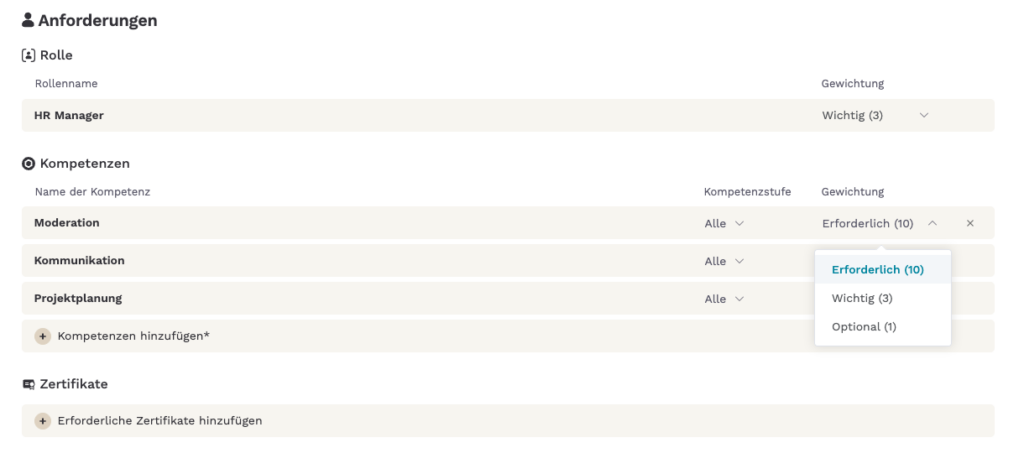
Under “Candidate requirements” you can link a role and add the skills that matter, each with a level and a weight: essential, important, or nice to have. If proof is needed, you can also add required certificates. Teammeter uses these requirements to calculate the match.
📅 Timing and capacity
Under “Timing and Capacity” you set a start date and an end date. You also enter how much time the work takes: a number under “Required capacity” and the unit under “Capacity type”, for example 4 hours per week.
✅ How to publish
To publish, set the status at the top right to “Open”, click “Publish” and confirm. The opportunity then shows up for employees under “Browse opportunities”, and those whose profile fits best also see it on their dashboard under “Opportunities for you”.
If you set the status back to “Draft”, the opportunity is paused again.
Related articles
- Invite candidates to an Opportunity
- Review applications for an Opportunity
- How opportunity matching works
Getting help
If something does not work as described here, write to support@teammeter.com.