Your skill profile is where you build up your skills, plan your development and follow your progress in Teammeter. It helps you see where you stand, work toward your target levels and keep your growth on track. This guide walks through each part of your profile.
🔍 Where do I find my profile?
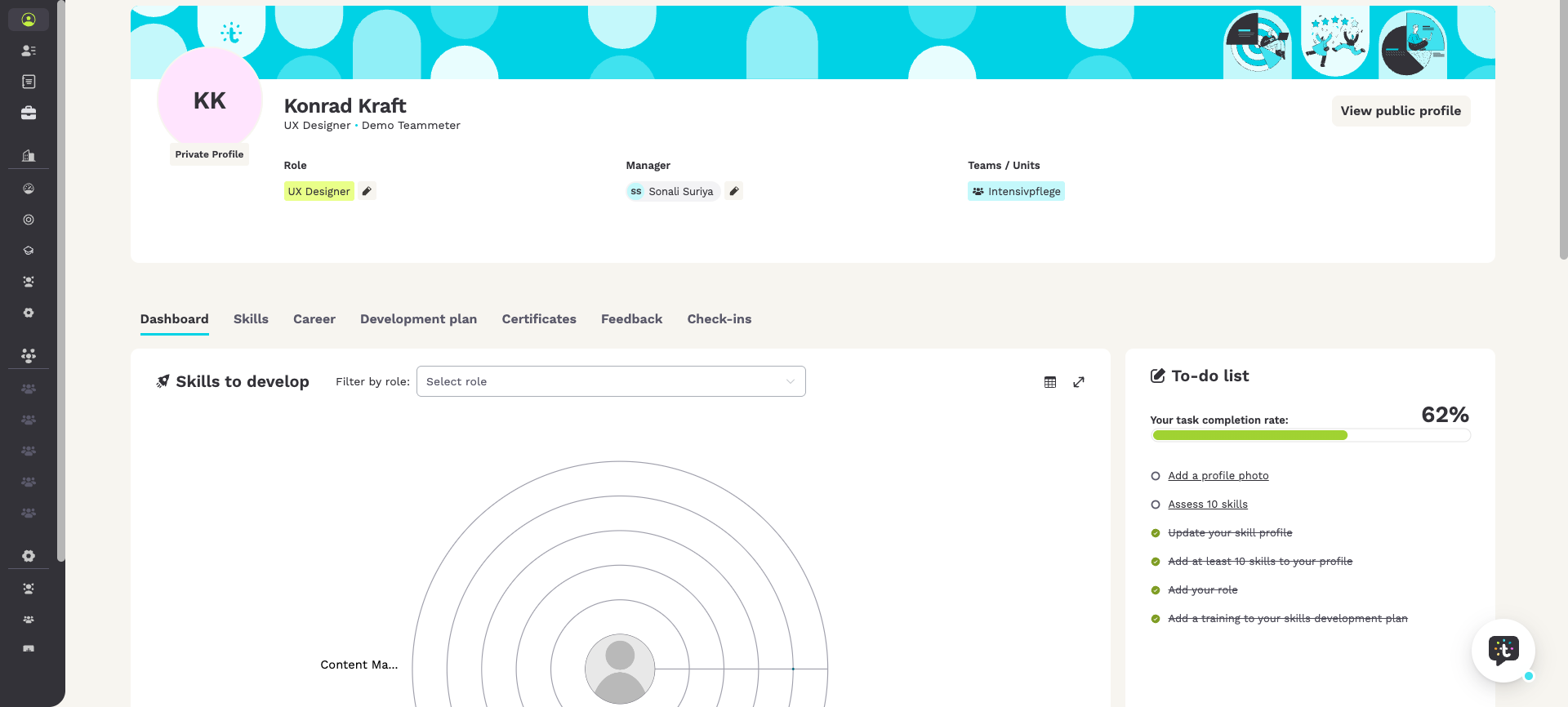
You open your personal skill profile from the top of the left sidebar under “My profile”. You first see your individual Dashboard, which is organized in tabs and other navigation elements: “Dashboard”, “Skills”, “Development plan” and “Certificates”. Depending on the modules your organization uses, you also see the options “Career”, “Feedback” and “Check-ins”.
Your profile also offers several configuration options.
Clicking one of your roles opens its “Role details”. To the right, you can click the pencil icon “Add or edit your roles” to select or deselect roles. Use the search to find a specific position in your organization. Open the “Role details” to check the description, the required skills and the responsibilities. You also see a list of roles that match your current skills. This shows you where you can develop next. Next to it, you can “Select Manager”. You can also see the teams you are assigned to. The “View public profile” button at the top right opens your public profile, meaning what others can see about you.
👤 What does each tab show?
Together, these tabs help you spot skill gaps, plan focused development and follow your progress over time.
The Dashboard
The Dashboard is the first tab you see when you open your profile. It brings your development together in one place:
- To-do list: your personal checklist for setting up and keeping up your profile. It always includes the onboarding steps (add a profile photo, add at least 10 skills, assess 10 skills, add your role, and add a training to your development plan) and can add context tasks when they apply, for example update your skill profile or fill in a check-in you were asked to complete. A progress bar (Your task completion rate) shows how far along you are, each task is weighted and is either open or done, and clicking one takes you straight to where you complete it. When everything is done, the list shows a short congratulations message.
- Skills to develop: the skills that still have a gap to your target, so you can see where to focus next.
- Opportunities for you: internal opportunities that match your profile.
- Growth Journey for the last 12 months: how your skills have developed over the past year, including your most improved skills.
- Planned training sessions: the trainings scheduled in your development plan, gathered in one place.
- Skill recommendations and Suggested training courses: personalized suggestions based on your role and your development goals.
ℹ️ Note: the To-do list is this profile checklist. It can link you to a check-in to fill in, but a Check-in itself is a review conversation, and your Development plan tracks actions with a status (Planned, Ongoing, Completed). Neither of those is a to-do list.
The Skills tab
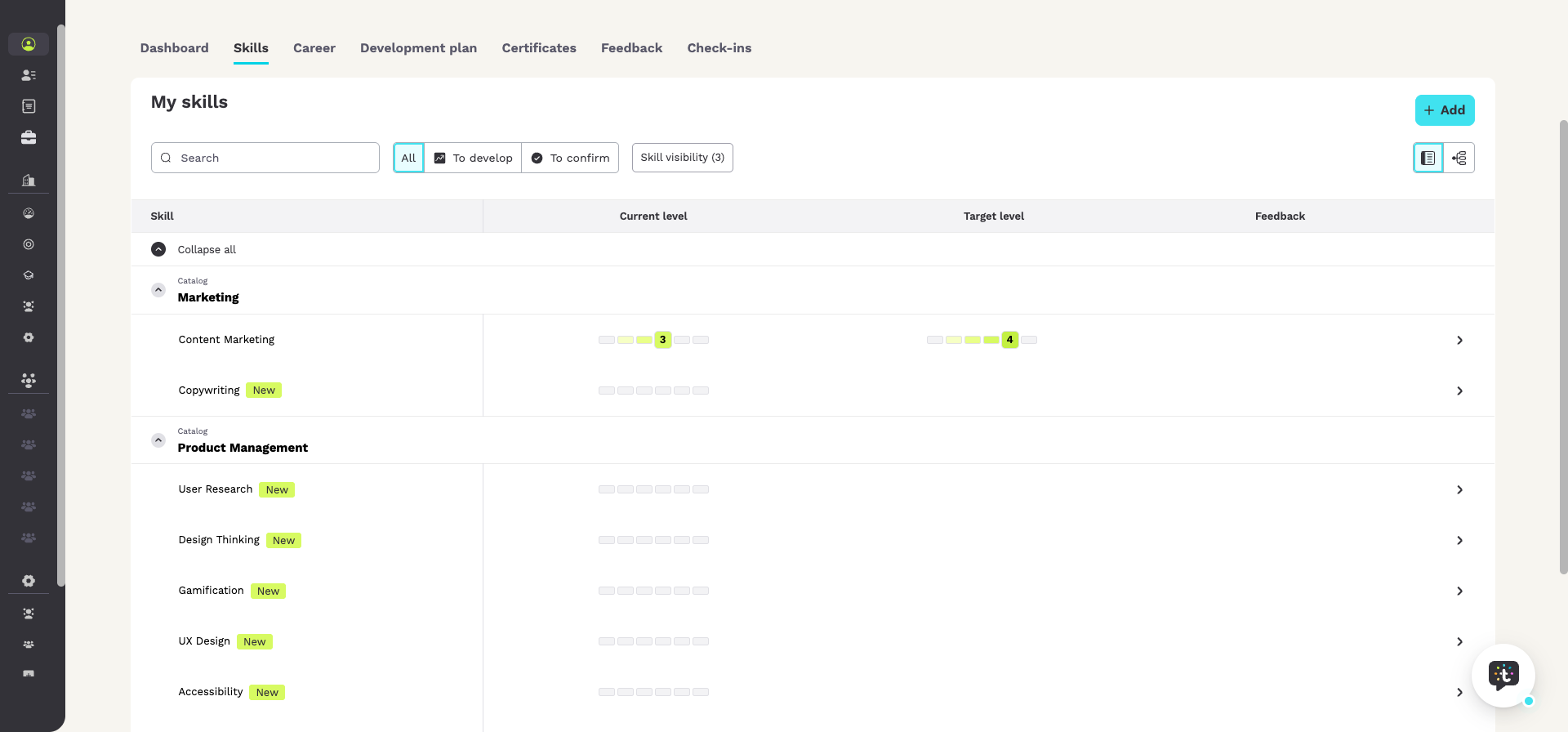
The Skills tab, titled My skills, lists the skills linked to your role. For each skill you see your Current level, your Target level and any Feedback. Use Add to add a new skill, then set your Current level and Target level so they reflect your role requirements and your development goals. You can filter the list, also by Skill visibility, and use Collapse all to tidy the view.
The Development plan tab
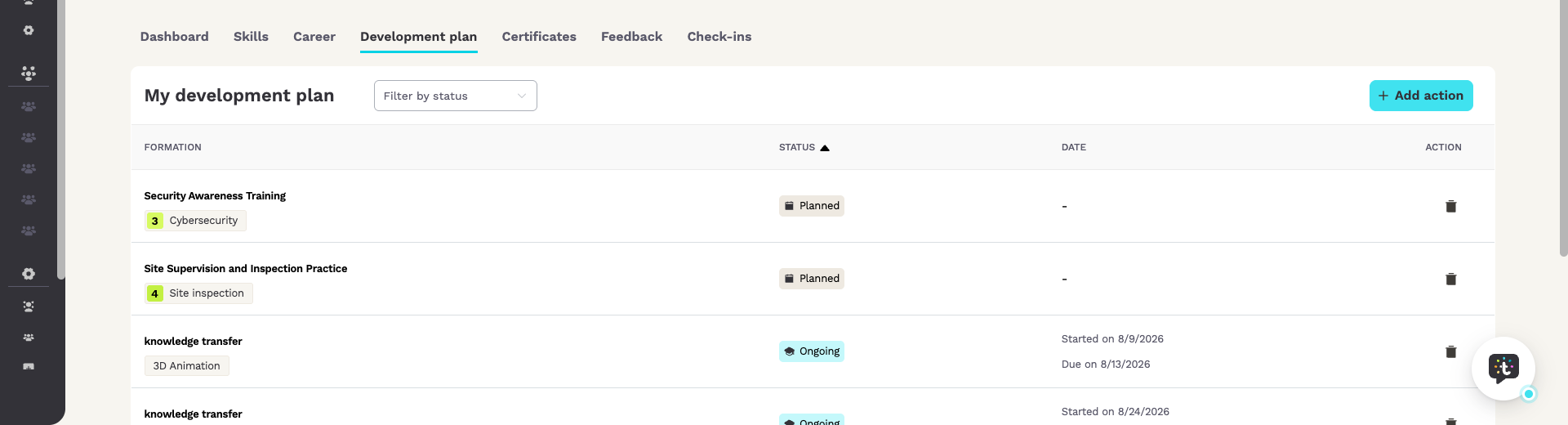
The Development plan tab, titled My development plan, is where you plan the activities that move you toward your target levels, such as trainings, workshops or onboarding sessions. Use Add action to add an activity, then follow it by Status (Planned, Ongoing, Completed) and Date. Everything you plan is gathered here, so you keep a clear view of what is coming up.
The Certificates tab
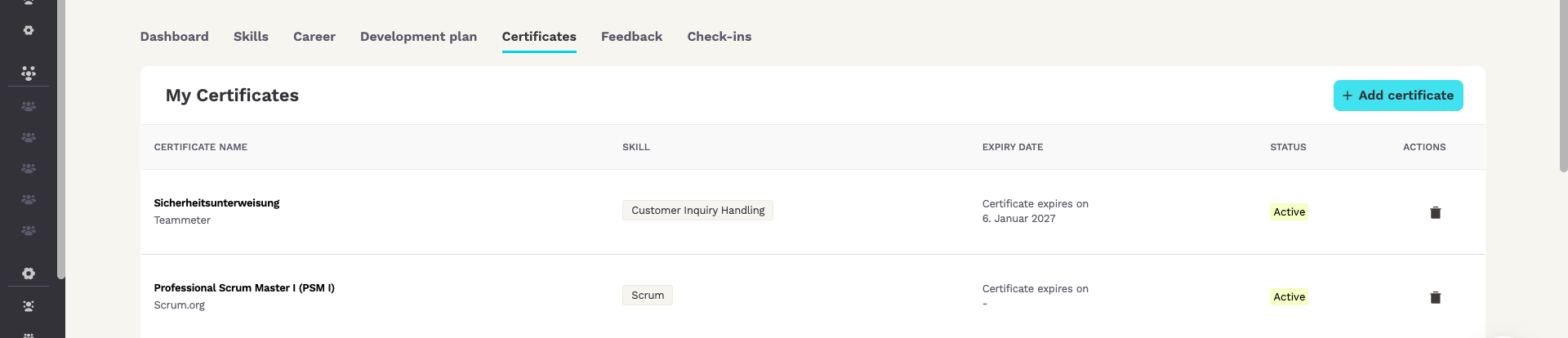
The Certificates tab, titled My Certificates, lists your certificates with their Certificate name, the related Skill, the Expiry date and Status. Use Add certificate to add one. After you complete a training in your development plan, upload the certificate to it and it appears here. A company-wide certificate overview is also available under Company in the left sidebar.
Feedback and Check-ins
The Feedback tab, titled List of feedback, shows feedback on your skills, grouped by state: Received, Requested, To fill and Filled. Use Request feedback to ask a colleague or manager for feedback. This tab appears if your organization uses the feedback module.
The Check-ins tab shows your check-ins. If none are scheduled yet, you see a note that no check-in has been planned for you. This tab appears if your organization uses the check-in module.
🔒 Who can see my skills?
For data protection reasons, you decide for each skill on your profile who else can see it. You, your manager and HR Officers always see all of your skills, whichever level you choose.
What do the three levels mean?
Each level widens the circle of people who can see a skill:
- “Manager only”: nobody apart from you, your manager and HR Officers.
- “Team”: the members of your team as well. If you belong to several teams, the members of all of them.
- “Organization”: everyone in your organization. Colleagues can also find you through this skill.
If your organization uses its own title for managers, the first level carries that title.
How do I set the visibility of all my skills at once?
The quickest way is an overview that you open from your public profile. Only you can change the visibility of your skills.
- Open your profile and click “View public profile”.
- Go to the section “Top Skills”.
- Click “Configure visibility”.
- The panel “Skill visibility” opens. To find a skill quickly, type its name or its category into the search field.
- Pick a level for the skill in the column “Visibility”. Your choice is saved straight away.
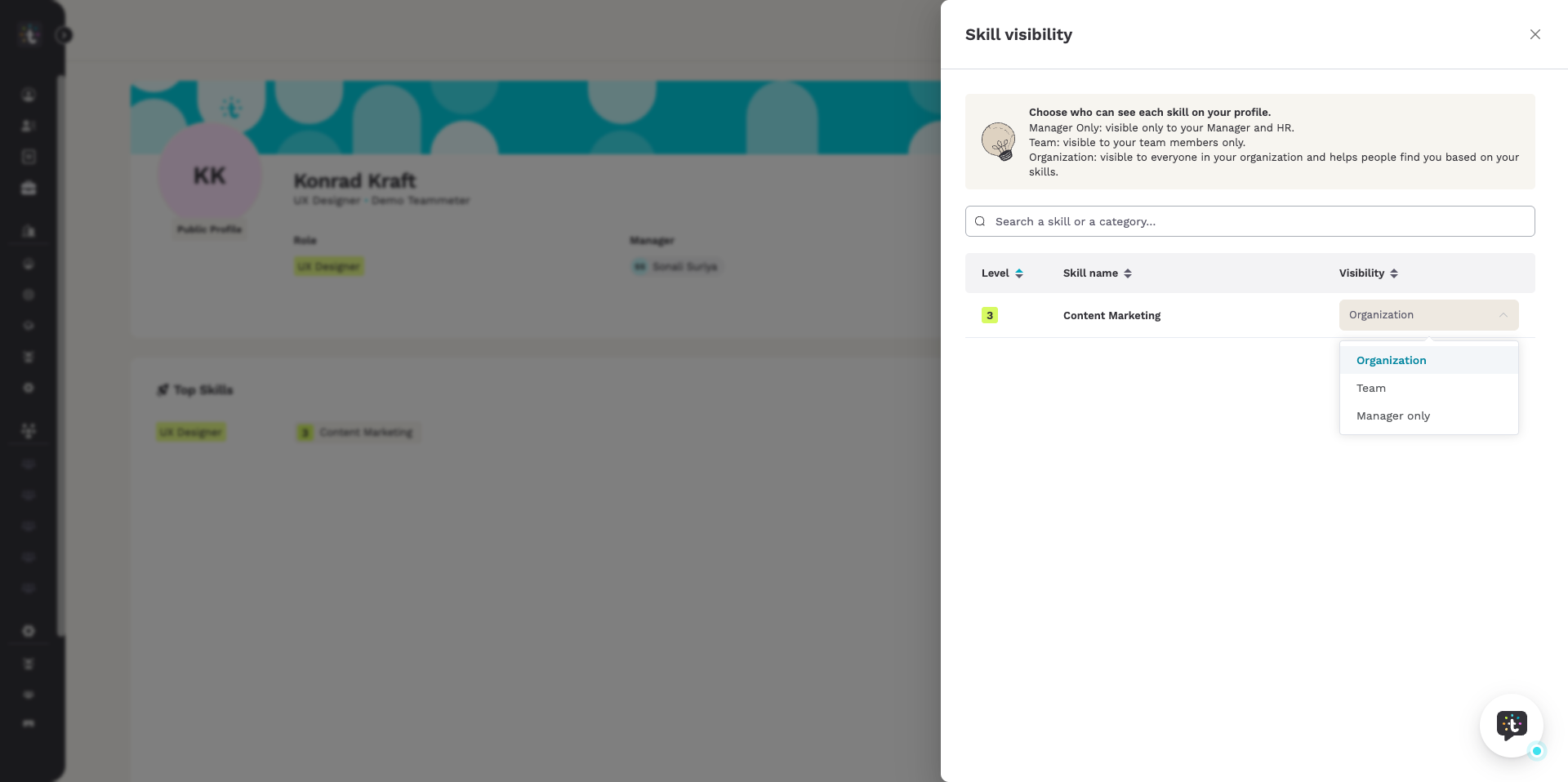
ℹ️ Note: the panel only lists skills with a current level. A skill without one shows up there once you have set its current level on your profile.
How do I change it for a single skill?
You can also set the level while you work on one skill, straight from its details.
- On your profile, open the tab “Skills”.
- Click the details icon in the row of the skill. Its tooltip reads “Open details view”.
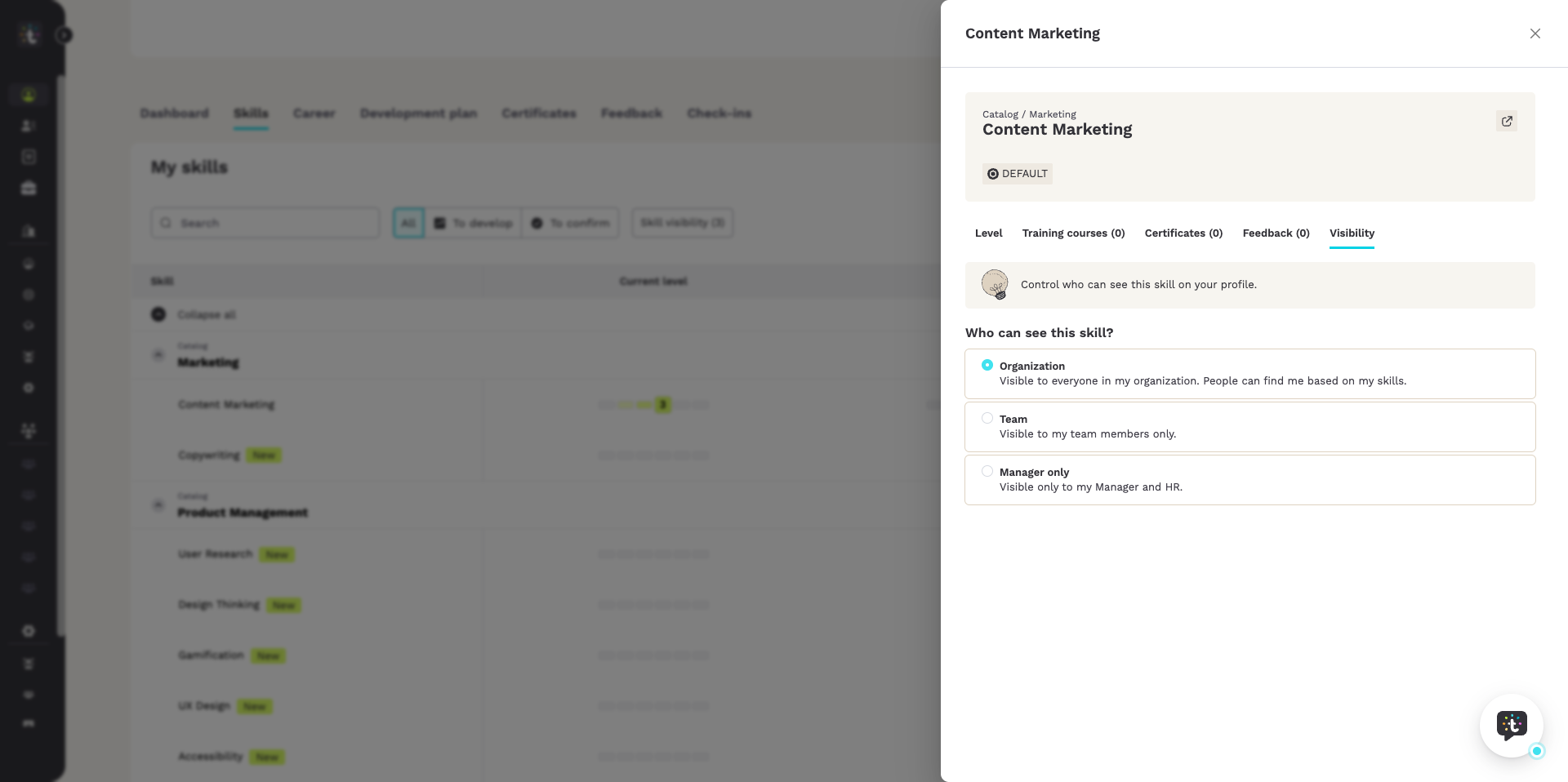
- In the panel that opens, go to the tab “Visibility”.
- The tab is headed “Who can see this skill?” Choose one of the three levels there. Here too, your choice is saved straight away.
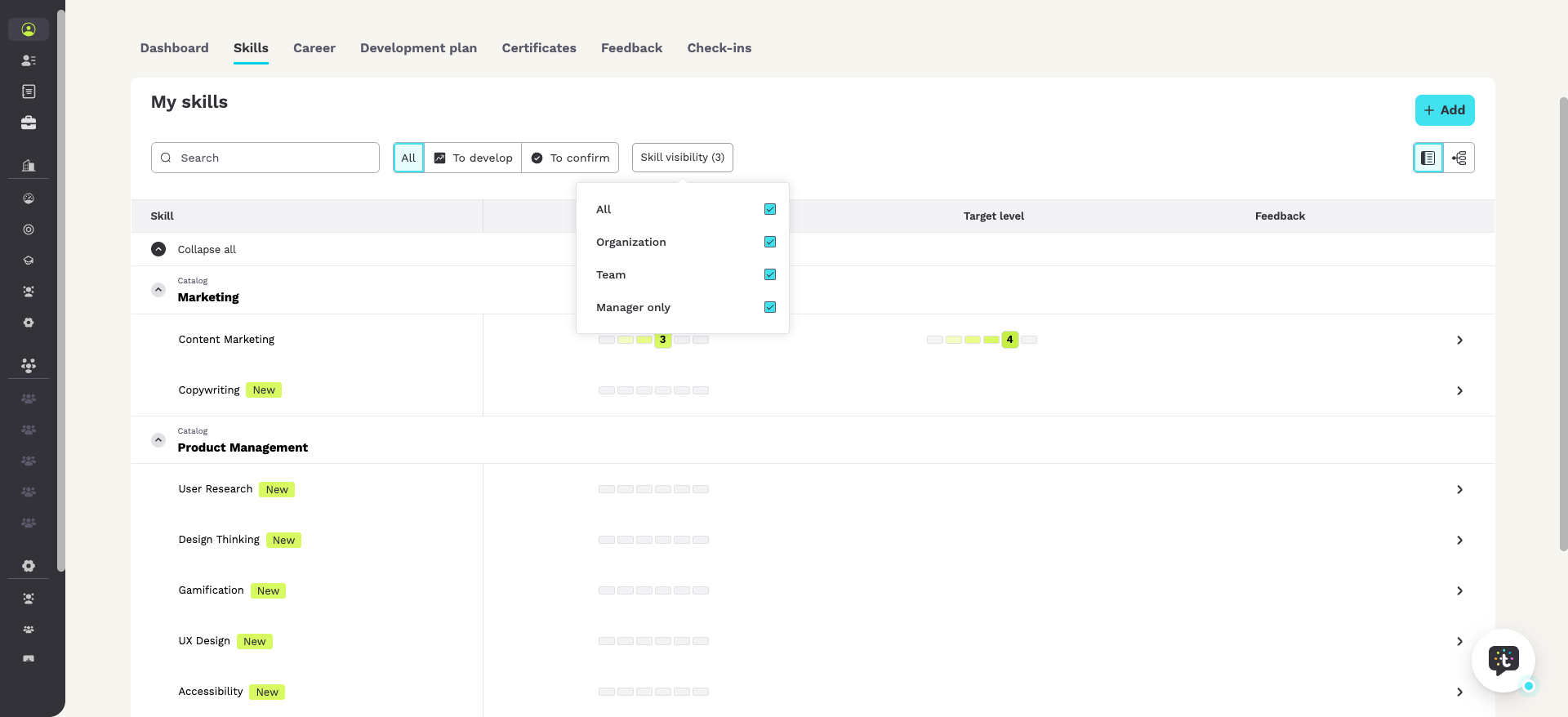
Checking which skills are on which level. The skill list on your profile has a filter for this. Tick one or more levels and the list shows only those skills. The number in brackets tells you how many levels are ticked. The filter is labelled:
“Skill visibility”
ℹ️ Note: a new skill starts with the default visibility of its skill type. Your organization sets these defaults in the skill catalog. You can then change the level of each skill as described above.
Who can change my profile?
You can change the information and skills in your profile. Your manager and HR Officers can change them too.
Can I see who has viewed my profile?
No. Teammeter does not show who has viewed your profile.
Related articles
- Searching in Teammeter: people, skills and certificates
- Give feedback to employees
- Use the skill matrix
- Manage the skill catalog
Getting help
If your profile does not behave as described here, write to support@teammeter.com.